

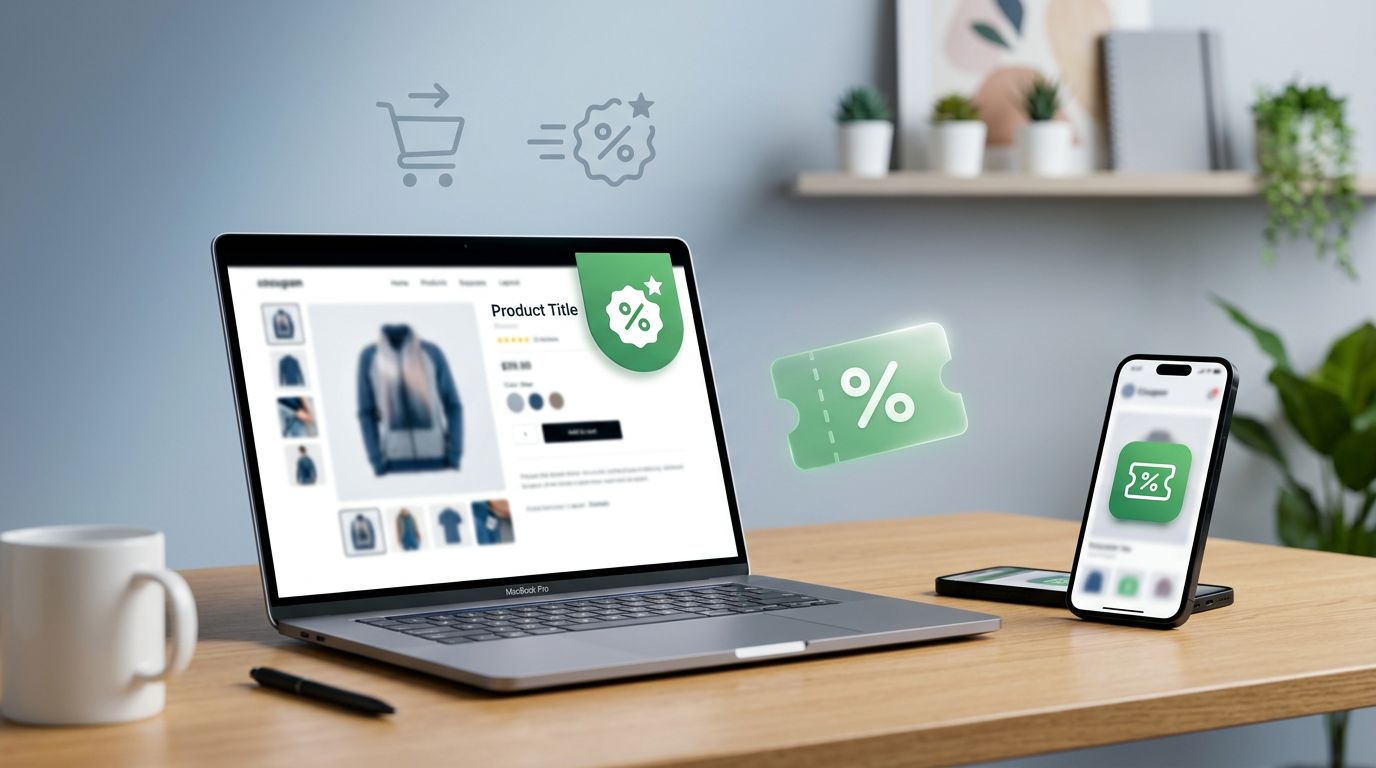
Amazon coupons can shave money off a cart fast, but only if you know where to look and how to clip them. In 2026, the process is still simple once you learn the pattern, yet the screens can vary by device, account, and even the product page version you see.
That means a coupon may show in search results on one account and only on the product page for another. It may also work on mobile but not on desktop, or disappear after you sign out and back in.
The good news is that the steps are easy once you know the signs to watch for. Here’s how to find, clip, and apply Amazon coupons without wasting time.
Where Amazon coupons show up in 2026
Amazon usually puts coupon offers in a few predictable places. You may see a badge in search results, a coupon box on the product page, or a deal inside Today’s Deals. Some shoppers also find them while browsing category pages or coupon roundups.
A helpful shortcut is to check the product page first, because that is where the final rules usually show up. DealNews keeps a running guide to the Amazon coupons page, which is useful if you want a feel for how Amazon organizes these offers.
For a quick visual of the badge shoppers often see, Business Insider’s Amazon coupon guide shows the usual clip-and-save flow on product pages.
Coupon placement can change from one session to the next. If you do not see a badge today, the same item may show one later, or not at all. That is normal on Amazon.
How to clip Amazon coupons on desktop and the app
The exact screen can look different, but the flow is similar. Check the coupon, add the item to your cart, then confirm that the discount appears before you pay.
Here is a simple side-by-side view:
| Step | Desktop | Mobile app |
|---|---|---|
| Find the offer | Search results, Today’s Deals, or the product page | Search results, Today’s Deals, or the product page |
| Clip it | Check the coupon box or button | Tap the coupon box or button |
| Add to cart | Click “Add to Cart” | Tap “Add to Cart” |
| Confirm savings | Check the cart and checkout total | Check the cart and checkout total |
The key point is simple, the coupon should show up in your order summary before you place the order. If it doesn’t, do not assume the discount is active.
Desktop steps
- Open Amazon in your browser and sign in.
- Search for the item or browse Today’s Deals.
- Look for a coupon badge, checkbox, or clipped offer on the product page.
- Click the coupon box, then add the item to your cart.
- Open the cart and check that the savings appears before checkout.
If the page reloads or changes after you clip, take one more look at the cart total. Some offers only show the discount at the final step.
Mobile app steps
- Open the Amazon app and sign in.
- Search for the item or open the product page.
- Tap the coupon offer, then add the item to your cart.
- Review the order total before you place the order.
The app can be faster for quick shopping, but it also changes often. If a coupon disappears, refresh the page or reopen the app before you give up.
Why an Amazon coupon may not show or apply
Coupon problems usually come down to eligibility, not user error. The item may be excluded, the coupon may be one-time use, or your account may not qualify for that version of the offer.
If the badge looked available but the discount never appeared, the item or account may not meet the offer terms.
Use this quick checklist when a coupon acts up:
- The item is excluded: Some coupons only work on certain colors, sizes, sellers, or variations. Check the product page details, not just the badge.
- The limit is one per customer: If you already used the coupon once, it may not apply again.
- Your region or account is different: Amazon can show different offers based on country, shipping address, or account history.
- The page version changed: App and desktop can show different offers. Refresh, sign out, then sign back in if the coupon vanishes.
- The discount expired or sold out: Coupons can disappear without warning, especially on fast-moving items.
Also watch for account-specific quirks. A coupon may appear on your spouse’s account but not yours. That does not mean the offer is broken. It usually means Amazon is showing a different eligibility set.
If you see a coupon in search results but not on the product page, open the listing fully. Sometimes the badge is only a teaser, and the actual terms sit lower on the page.
How Amazon coupons work with other discounts
Stacking can save more, but it depends on the offer terms. Some items let you combine a coupon with a sale price or Subscribe & Save. Others block stacking completely.
That means you should not guess. Check the coupon details, then look at the final order summary. If the cart shows both discounts and the total looks right, you’re fine. If one discount disappears, the offer probably does not allow the combination.
The safest rule is simple, the checkout total is the truth. A product page can look generous, but the cart decides what you actually pay.
A coupon can also work alongside a promo code in some cases, but only when Amazon allows it. If the terms say the offers cannot be combined, treat that as final. Do not expect a checkout trick to change it.
Small habits that help you save more
Coupons work best when you shop with a little patience. Check the final price, not just the badge. A tiny coupon on a product with an inflated base price may still leave you paying more than a competing item.
It also helps to compare the same product in different forms. A bundle, a different size, or a Subscribe & Save option may have a better coupon than the version you first found. On mobile, save items to a list if you’re not ready to buy. On desktop, keep the cart open and revisit it later if the offer looks weak.
The fastest shoppers on Amazon are not always the ones who buy first. They are the ones who verify the total before they click buy.
Conclusion
Using Amazon coupons in 2026 is mostly about knowing where the offer appears, clipping it correctly, and checking the final total before checkout. The process works on both desktop and mobile, but the screen can look different from one account to another.
When a coupon does not show up, start with eligibility, not frustration. Check the item rules, the account limit, and the final cart total, because those details decide whether the savings actually lands.
If you build that habit, coupons become a quick way to trim everyday orders without guessing.