


Seeing “Reserved” in Seller Central can feel like Amazon put your inventory in time-out. You know the units exist, yet your amazon reserved inventory number climbs and your “Available” count drops.
Reserved doesn’t usually mean you lost stock. It means Amazon temporarily set units aside for a specific operational reason, so they can’t be promised as normal, fast-shipping inventory right now.
Once you know why units are reserved, the fix is often simple: wait, verify a shipment, resolve a stranded listing, or cancel a stuck removal.
Reserved inventory, explained in plain English (with a quick example)
In Amazon FBA, Reserved means units are on hand in Amazon’s network, but Amazon is holding them for something in progress. Common holds include customer orders that haven’t shipped yet, warehouse transfers, or fulfillment center checks.
Reserved units still count as your inventory. However, they usually don’t count as sellable “Available” inventory until the hold clears. That’s why reserved inventory can quietly cause stockouts even when you “have” plenty of units.
Here’s a concrete example to make it real:
| Inventory bucket | Units | What’s happening | What you can do |
|---|---|---|---|
| On hand | 200 | Amazon has 200 units in FCs | Monitor counts |
| Available | 140 | Sellable now with normal delivery | Keep ads/pricing steady |
| Reserved (total) | 60 | Temporarily held | Diagnose the reason |
| Reserved for customer orders | 10 | Paid orders waiting to ship | Usually clears after shipment |
| Reserved for FC transfer | 50 | Being moved to another FC | Wait, avoid panic-restocking |
If you want extra context on how sellers typically see these buckets, this reserved inventory explainer does a good job describing the practical impact.
A good rule: On hand tells you what exists, Available tells you what can sell today.
Where to find the “Reserved” reason in Seller Central (2026 paths)
Amazon shows “Reserved” in several places, but not all pages show the reason. Use the views below to go from “something’s reserved” to “here’s why.”

Inventory Dashboard (fastest health check)
- In Seller Central, go to Inventory.
- Open Inventory Planning (or Inventory planning) and select Inventory Dashboard.
- Look for your FBA inventory summary widgets, then click the count under Reserved (or hover for a breakdown when available).
This view helps you spot spikes quickly, especially after you send inventory or run promotions.
Manage FBA Inventory / Manage All Inventory (SKU-level troubleshooting)
- Go to Inventory and open Manage All Inventory.
- Search your SKU or ASIN.
- Add or view columns like Available, Reserved, and any fulfillment-related statuses.
- Click the Reserved number (when it’s a link) to open details, or use the row-level menu to jump to FBA tools.
If reserved is concentrated in one SKU, this page is the quickest way to confirm it.
Reports: Reserved Inventory report (best for exact reserved reasons)
- Go to Reports.
- Open Fulfillment.
- Find Inventory reports, then select Reserved Inventory.
- Download the report and filter by SKU/FNSKU.
This report is where you’ll usually see reserved broken into categories like Customer orders, FC transfer, and FC processing, so you can stop guessing.
Restock and Inventory Performance pages (reserved affects decisions)
- Go to Inventory and open Inventory Planning.
- Click Restock Inventory to see how “Available” affects restock suggestions.
- Open Inventory Performance to review any limits or recommendations that reserved inventory may worsen.
Reserved can make restock suggestions look urgent, even when on-hand is high. Always check the reserved reason before creating a new shipment.
For another seller-friendly walkthrough of what “reserved” means and how it typically clears, see reserved reasons and release timing examples.
Why Amazon reserves inventory (and what to do for each cause)

Most reserved inventory falls into a few buckets. The trick is matching the bucket to the right action.
1) Customer orders (pending shipment)
This is the “healthy” kind of reserved. A buyer ordered 10 units, Amazon hasn’t shipped yet, so those units sit in reserved.
Next steps:
- Wait for the orders to ship (often hours to a couple days, longer during peak periods).
- If it stays stuck, check for account or listing issues that could block shipping (pricing errors, restricted product status, or compliance flags).
2) FC transfer (Amazon moving your stock)
Amazon frequently rebalances inventory. If 50 of your 200 units are in FC transfer, customers may see slower delivery dates until the destination FC receives them.
Next steps:
- Give it time. Transfers can take days, and sometimes longer.
- Avoid sending a panic replenishment until you confirm “Available” won’t recover soon.
- If transfers drag on and you suspect a mismatch, compare your Reserved Inventory report to your on-hand totals, then document the dates and quantities before contacting support.
3) FC processing (counting, inspection, problem-solving)
FC processing often happens after receiving, when Amazon counts, scans, measures, or checks condition. It can also happen after returns, relabeling, or compliance review.
Next steps:
- Wait a short period first, especially right after delivery or a large inbound.
- If units remain in FC processing for an unusually long time, review your inbound shipment history and carton content accuracy.
- If you see consistent delays for one ASIN, consider packaging, prep, labeling, or hazmat classification issues.
4) Removal orders (units reserved to leave the FC)
When you create a removal or disposal order, Amazon reserves those units so they can’t sell while being pulled.
Next steps:
- If you changed your mind, cancel the removal order (if still cancelable).
- If the removal looks stuck, check the removal order status and timestamps, then open a case with order IDs ready.
5) Stranded inventory (not always labeled “reserved,” but feels the same)
Stranded units are physically in an FC but not connected to an active, sellable listing. You might notice reserved or unavailable counts rising while sales drop.
Next steps:
- Go to Inventory → Inventory Planning → Fix stranded inventory (wording varies).
- Resolve the root issue (closed listing, brand approval, missing offer, pricing error, or suppressed listing).
- After fixing, watch for units to move back to sellable status.
6) Inbound shipment problems (receive short, lost, or not checked in)
Sometimes inventory appears “stuck” because a shipment is partially received or miscounted.
Next steps:
- Reconcile the inbound shipment in your shipping workflow (shipment events, delivered date, received quantity).
- Keep proof organized (BOL, POD, box counts).
- If Amazon’s count stays short after the reconciliation window, request an investigation and ask about reimbursement eligibility.
For an additional seller-oriented explanation of common causes, this guide is a helpful cross-check: what “Reserved” means on FBA.
Diagnose reserved inventory fast (simple decision tree + checklist)
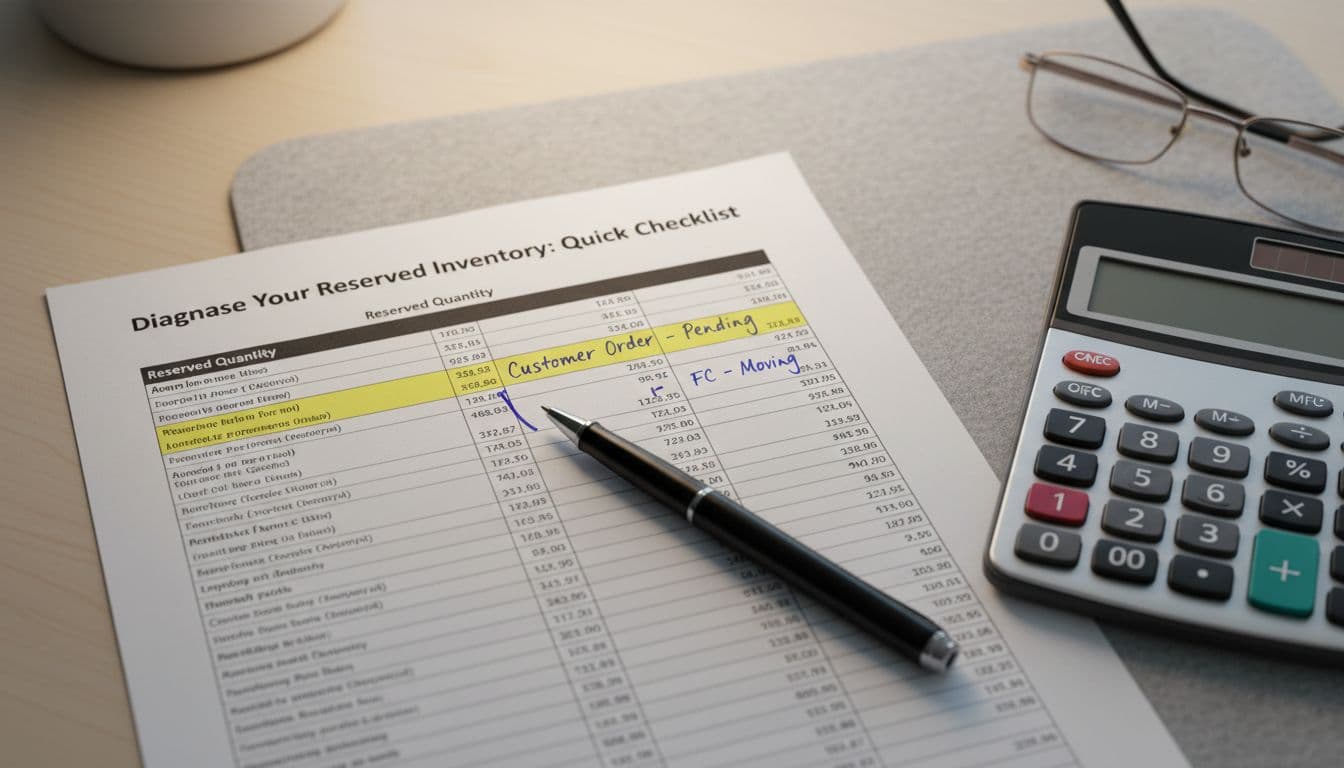
Use this quick path to stop spinning your wheels:
Decision tree (60-second version)
- Reserved is mostly “Customer orders”? → Wait for shipment, then re-check tomorrow.
- Mostly “FC transfer”? → Watch delivery promises, wait a few days, don’t double-restock yet.
- Mostly “FC processing”? → Check recent inbound deliveries and problem SKUs, then wait briefly.
- Reserved after creating a removal? → Verify removal status, cancel if possible.
- Units look trapped with no clear reason? → Pull the Reserved Inventory report and filter by SKU.
- Counts don’t add up after a long delay? → Document dates and open a support case.
Mini-checklist before you contact support:
- Confirm the affected SKUs in Manage All Inventory.
- Download the Reserved Inventory report and save a copy.
- Check Fix stranded inventory for listing disconnects.
- Review inbound shipment receiving status if the timing matches your delivery.
FAQ
Does reserved inventory cost storage fees?
Yes, it’s still stored in Amazon’s network, so it generally counts toward storage.
Can I stop Amazon from transferring my inventory?
Not fully. Amazon controls most FC transfers to meet delivery promises.
How long does reserved inventory take to clear?
It depends on the cause. Customer orders usually clear fastest, transfers and processing can take longer. If it’s been weeks, investigate and escalate.
For one more plain-English breakdown, see decoding the reserved status.
Conclusion
“Reserved” in FBA is Amazon putting units aside for a reason, not a mystery tax on your inventory. Once you match the reserved bucket to the cause, the next move becomes obvious: wait for orders, give transfers time, fix stranded listings, reconcile inbound shipments, or unwind a stuck removal. Keep a habit of checking amazon reserved inventory in the dashboard and confirming details in the Reserved Inventory report, your “Available” count will stop surprising you.